
Navigating the world of IPTV can be incredibly rewarding, offering a vast array of entertainment options right at your fingertips. A crucial, yet often overlooked, component of a smooth IPTV experience is the Electronic Program Guide (EPG). The EPG is your roadmap to what’s on, providing schedules, program descriptions, and channel information. For beginners, understanding how to get this working smoothly and how to tailor it to your viewing habits can unlock the full potential of your streaming setup. This guide aims to provide comprehensive iptv epg guide setup and customization tips, ensuring you can easily find and enjoy your favorite content without hassle.
Understanding the IPTV EPG
At its core, the Electronic Program Guide (EPG) is a digital interface within your IPTV application that displays television listings. Think of it as the digital equivalent of your old TV guide magazine, but dynamic and integrated directly into your viewing experience. It shows what shows are currently airing, what’s coming up next, and often provides detailed program information such as synopses, cast details, and episode numbers.
The EPG data is typically provided by your IPTV service provider in a specific format, most commonly XMLTV. This data file contains all the necessary information for the EPG to function. Your IPTV player application then reads this XMLTV file and presents it in a user-friendly grid format. Without a proper EPG feed, you’d be left channel surfing blindly, unsure of what’s on or what to watch. This is why setting up your EPG correctly is just as important as setting up your channel list. Understanding its importance is the first step to mastering its setup and customization.
Why a Well-Configured EPG Matters
A properly configured EPG chain does more than just show what’s on. It enhances your entire IPTV viewing experience in several key ways:
- Effortless Content Discovery: No more guessing games. The EPG allows you to browse upcoming programs, discover new shows, and plan your viewing schedule.
- Detailed Program Information: Beyond just titles, the EPG can offer synopses, actors, directors, genres, and ratings, helping you decide if a program is right for you.
- Time-Saving Navigation: Quickly jump to a specific channel and see what’s playing or what’s scheduled for later, saving you the frustration of manual channel scanning.
- Personalized Experience: With customization, you can filter channels, set favorites, and even receive reminders for shows you don’t want to miss.
- Seamless Integration: A well-integrated EPG feels like a natural part of your IPTV app, providing a fluid and intuitive interface.
For those looking for premium IPTV options, ensuring the EPG is robust and accurate is a key indicator of service quality. A service offering a comprehensive set of channels with detailed program information, like many providers aim for in the IPTV premium market, will significantly elevate your viewing.
Setting Up Your EPG: A Step-by-Step Guide
The process of setting up your EPG can vary slightly depending on the IPTV player app you are using. However, the fundamental principles remain the same. Most modern IPTV players offer an intuitive way to add EPG data.
Step 1: Obtain Your EPG URL or File
Your IPTV service provider will usually supply you with an EPG URL. This is a web address that points directly to the XMLTV file containing the schedule data. In some cases, they might provide a direct XMLTV file that you can download.
- Check Your Provider’s Portal: Log in to your account on your IPTV provider’s website. The EPG URL or download link is often found in your account dashboard or a dedicated “EPG” section.
- Contact Support: If you cannot locate the EPG information, don’t hesitate to contact your IPTV provider’s customer support. They are there to help you get connected. For those seeking reliable support, considering an IPTV subscription with customer support is advisable.
Step 2: Access Your IPTV Player’s EPG Settings
Navigate to the settings menu within your preferred IPTV player application. Common applications include IPTV Smarters Pro, Tivimate, Perfect Player, GSE Smart IPTV, and many others. Look for an option labeled “EPG,” “Electronic Program Guide,” “EPG Settings,” or “XMLTV URL.”
Step 3: Add the EPG URL or File
- Using a URL: Select the option to add an EPG source and choose “URL” or “Network.” Paste the EPG URL provided by your IPTV service into the designated field. You might also be asked to give the EPG source a name (e.g., “My IPTV EPG”).
- Using a File: If you downloaded an XMLTV file, select the option to add an EPG source and choose “File” or “Local File.” Browse your device’s storage to locate and select the downloaded XMLTV file.
Step 4: Refresh or Sync EPG Data
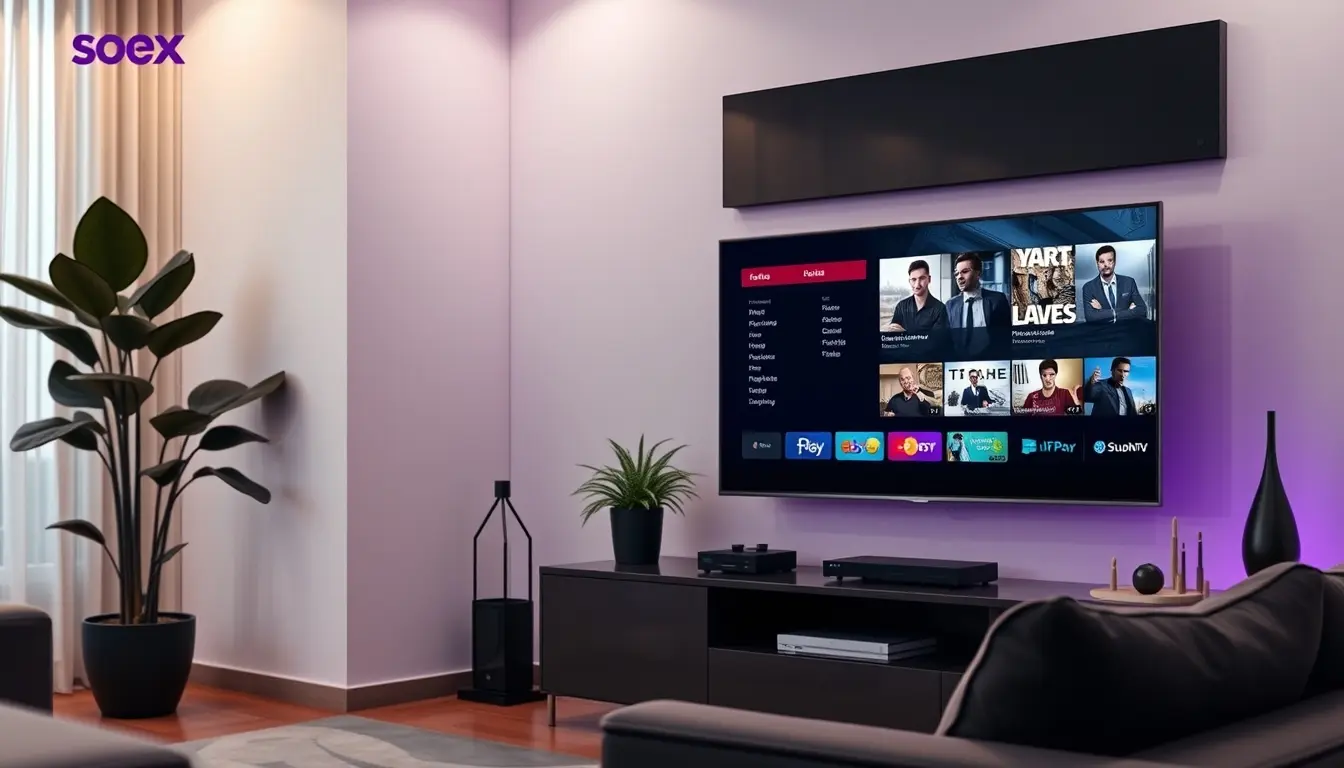
Once you’ve added the source, you’ll typically need to refresh or sync the EPG data. Look for a “Refresh,” “Sync,” or “Update EPG” button. This process can take a few moments, depending on the size of the EPG data and your internet connection speed.
Step 5: Verify EPG Functionality
After the refresh is complete, navigate back to your EPG view within the app. You should now see channel names, program titles, and schedules. Check a few different channels and time slots to ensure the data is loading correctly and appears to be up-to-date.
Troubleshooting Common EPG Setup Issues
- EPG Not Loading: Double-check the EPG URL for typos. Ensure your internet connection is stable. Try refreshing the EPG data again. If the issue persists, contact your IPTV provider.
- Incorrect Channel Names/Programs: The EPG data might not be correctly mapped to your channel list. Some advanced players allow you to manually map channels or import a channel list with EPG IDs.
- Outdated Information: EPG data is usually updated periodically. If you notice consistently outdated information, check with your provider for their update schedule or if there’s a manual refresh option you need to use more frequently.
Customizing Your IPTV EPG for a Personalized Experience
Setting up the EPG is just the beginning. The real power comes from customization, allowing you to tailor the EPG to your specific needs and preferences. This is where the true iptv epg guide setup and customization tips come into play, making your viewing experience truly your own.
Filtering Channels
Many IPTV players allow you to filter the EPG to display only the channels you’re interested in. This is incredibly useful if your IPTV service offers hundreds or even thousands of channels.
- Remove Unwanted Channels: You can often hide channels you never watch, decluttering your channel list and EPG.
- Create Custom Groups: Some apps let you create custom EPG groups (e.g., “Sports,” “Movies,” “Kids,” “News”) based on genres or categories.
- Favorite Channels: Designate your most-watched channels as favorites for quick access directly within the EPG.
Setting Reminders and Recording Options
Advanced IPTV players integrate EPG functionality with recording capabilities and program reminders.
- Program Reminders: Select a program in the EPG and set a reminder. Your app will notify you when the show is about to start.
- Recording Programs (PVR Functionality): If your setup supports it (often requiring a compatible device and storage), you can schedule recordings directly from the EPG. Simply select the program, choose the “Record” option, and set the duration if necessary. This turns your IPTV setup into a powerful personal video recorder (PVR).
Customizing Appearance and Layout
Beyond just content, you can often tweak the visual appearance of your EPG.
- Font Size and Color: Adjust text size and colors for better readability, especially on different screen sizes.
- Column Layout: Some players allow you to choose how many days of programming are visible in the EPG grid at once, or how many channels are displayed vertically.
- Information Display: Customize what details are shown for each program in the EPG view, such as just the title and start time, or full synopses.
Time Zone Settings
Ensuring your EPG is synchronized with your local time is critical. Incorrect time zone settings will lead to programs showing at the wrong times. Most EPG settings will allow you to specify your local time zone. If your provider offers XMLTV data from a specific region, make sure your player is set to display it correctly in your local time.
Advanced EPG Customization Guide
For users who want to dive deeper, an iptv epg guide setup and customization tips often involves understanding how your IPTV player handles EPG data. Some players, like Tivimate, offer unparalleled control over EPG appearance, data refreshing, and channel mapping. Reading the specific documentation for your chosen IPTV app is key to unlocking its full customization potential. This is where exploring the nuances of an iptv epg guide setup and customization tips can truly transform your viewing.
Choosing the Right IPTV App for EPG Management
The IPTV player application you choose significantly impacts your EPG experience. Some apps are basic and offer minimal EPG features, while others are packed with advanced customization options.
Key Features to Look For in an IPTV Player for EPG
- EPG Support: Native support for XMLTV.
- Easy EPG URL Input: A straightforward way to add your provider’s EPG URL.
- Automatic Refresh: Option to have the EPG data refresh automatically at set intervals.
- Channel Filtering/Grouping: Ability to organize your EPG view.
- Program Reminders/Recording Integration: Seamless interaction with PVR functions.
- Customizable Interface: Options to adjust layout, colors, and text.
- EPG Viewer Performance: Smooth scrolling and quick loading, even with large EPG datasets.
Popular IPTV Players and Their EPG Capabilities
- IPTV Smarters Pro: A popular all-in-one player with good EPG support, though customization options are more limited compared to some dedicated players. It’s widely used for both live TV and VOD.
- Tivimate: Often considered the gold standard for Android IPTV players, Tivimate offers advanced EPG features, extensive customization, and a slick interface. It supports multiple EPG sources and has robust PVR capabilities.
- Perfect Player: Another powerful option for Android devices, offering good EPG integration, channel grouping, and customization.
- GSE Smart IPTV: Available on iOS and Android, GSE Smart IPTV provides solid EPG functionality and is known for its ease of use.
When setting up on devices like a Firestick, following a guide such as how to install IPTV on Firestick, ensuring your chosen app has good EPG features is paramount.

EPG Data Sources and Reliability
The quality of your EPG experience is directly tied to the quality and reliability of the EPG data source provided by your IPTV service.
XMLTV Format
XMLTV is the standard format for EPG data. It’s an XML-based file that describes TV channels and their programming schedules. Most IPTV providers use this format.
Issues with EPG Data
- Inaccurate Schedules: Sometimes, the EPG data might not perfectly match the actual broadcast schedule, leading to missed programs or incorrect information.
- Missing Program Information: Descriptions, episode titles, or other details might be absent for certain shows.
- Outdated Data: A provider might not update their EPG feed regularly, resulting in outdated schedules.
- Language Mismatches: The EPG data might be in a different language than expected.
Tips for Ensuring Reliable EPG Data
- Choose a Reputable Provider: Providers known for their quality service often supply more accurate and up-to-date EPG data.
- Check for Updates: See if your provider has a dedicated page or communication channel for EPG updates or maintenance.
- Consider Multiple EPG Sources (Advanced): Some players allow you to add more than one EPG source. If one is having issues, you might be able to switch to another, though this is less common for standard IPTV subscriptions where a single source is usually provided.
- Use a Provider with Good Support: If EPG issues arise, a provider that offers responsive support can help resolve them faster. This is a significant advantage, especially when dealing with complex setups or subscription-based services.
EPG and IPTV Subscriptions
Your IPTV subscription is the foundation of your service, providing access to the channels and, crucially, the EPG data feed. The nature of IPTV subscriptions means that the EPG is usually bundled with the service.
When selecting an IPTV subscription, pay attention to what the provider offers regarding EPG:
- Is an EPG included? Most reputable providers will include an XMLTV EPG feed.
- What is the EPG data quality? Look for reviews or feedback from other users regarding the accuracy and completeness of the EPG.
- Is the EPG updated regularly? Providers committed to quality will ensure their EPG feeds are kept current.
For example, when looking for a service that offers content like those found on a MAG box IPTV subscription, the EPG experience is equally important for usability.

Advanced EPG Customization and Tips
Beyond the basics, there are several advanced iptv epg guide setup and customization tips that can enhance your experience further.
Using Custom XMLTV Files
Some users with specific needs might create or obtain custom XMLTV files. This is an advanced topic but can be useful for:
- Merging multiple EPG sources.
- Filtering out specific channels or programs at the data level.
- Adding custom program information.
This typically requires specialized software and a deep understanding of the XMLTV format.
EPG Refresh Schedules
Configure your IPTV player’s EPG refresh schedule thoughtfully. Refreshing too often can strain your device and network, while refreshing too rarely might mean outdated information. A refresh every 12-24 hours is often a good balance. Some players allow you to schedule refreshes for times when you’re not actively watching, minimizing disruption.
Channel Mapping and Matching
In cases where the EPG data doesn’t automatically align with your channel list, manual channel mapping might be necessary. An iptv epg guide setup and customization tips often includes guidance on how to find the correct EPG IDs for each channel to ensure accurate matching. This is an area where dedicated players like Tivimate excel, offering detailed tools for this purpose.
Setting Favorites in the EPG
Make sure to set up your favorite channels within the EPG. This not only declutters the main EPG view but also allows quick access to your preferred channels directly from the guide itself. Some applications allow you to set a “Favorites” tab or group as your default EPG view.
Conclusion
Mastering your IPTV EPG is key to unlocking a more organized, efficient, and enjoyable streaming experience. Whether you’re a complete beginner or looking to refine your setup, understanding how to set up and customize your EPG can significantly enhance how you discover and watch content. By following these iptv epg guide setup and customization tips, you can transform a potentially confusing list of channels into a powerful, personalized entertainment guide. From obtaining the correct EPG URL to tailoring your view and leveraging advanced features, a well-configured EPG ensures you spend less time searching and more time watching.
Frequently Asked Questions About IPTV EPG Setup
What is an EPG URL?
An EPG URL (Uniform Resource Locator) is a web address that points to the Electronic Program Guide data file, typically in XMLTV format, provided by your IPTV service. Your IPTV player app uses this URL to download and display channel schedules.
Why is my EPG not updating?
This can happen for several reasons: the provider might not have updated the EPG feed, your internet connection might be unstable, or your IPTV player’s refresh settings might be too infrequent. Try manually refreshing the EPG in your app, check your internet connection, and if issues persist, contact your IPTV provider.
Can I use different EPG data sources for different channels?
While some advanced players might theoretically allow this, most standard IPTV subscriptions provide a single EPG URL that is meant to cover all their channels. Trying to mix sources can often lead to channel mapping issues and confusion. It’s best to use the EPG source provided by your IPTV service.
How often should I update my EPG?
For most users, updating your EPG once every 12 to 24 hours is sufficient. Many IPTV players can be configured to refresh automatically on startup or at a scheduled time. If you notice a lot of outdated information, you can increase the refresh frequency, but be mindful not to set it too high, as it can consume bandwidth and device resources.